2 Hidden SEO Mistakes Site Owners Never Notice

The two hidden SEO mistakes most site owners never notice are (1) their website is silently blocked from Google’s index by a noindex tag, robots.txt rule or wrong canonical, and (2) keyword cannibalization, where several of their own pages chase the same search intent. Both can stop rankings completely while the site still looks perfect from the outside.
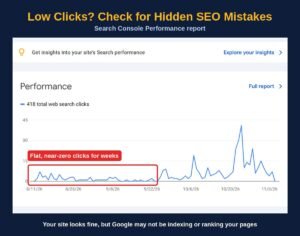
Picture this: you publish 40 well-written articles in six months. Your design is clean, your pages load fast, and your hosting bill is paid on time. Yet Google Search Console shows almost zero clicks. You blame the algorithm, your competitors, or “bad luck.” In reality, the problem is often sitting quietly inside your own WordPress dashboard, and it takes less than five minutes to find.
In This Article
- Why Do Some SEO Mistakes Stay Hidden?
- Mistake #1: Is Your Website Blocking Google by Accident?
- How to Check If Google Can Index Your Site
- How to Fix Indexing Blocks Step by Step
- Mistake #2: Are Your Own Pages Competing Against Each Other?
- How to Find Keyword Cannibalization in 10 Minutes
- How to Fix Keyword Cannibalization Without Losing Traffic
- What Do Top SEO Experts Say About These Mistakes?
- Frequently Asked Questions
- Start Your Hidden SEO Audit Now
Hidden SEO mistakes are dangerous because they don’t send you an error message. Your website opens normally, your visitors see every page, and nothing looks broken. But Google either cannot index your pages or cannot decide which one to rank. In this guide, you will learn exactly what these two hidden SEO mistakes are, how to detect them using free tools, and how to fix them with clear, numbered steps.
Why Do Some SEO Mistakes Stay Hidden?
Most SEO problems are visible. A broken link shows a 404 page. A slow site makes visitors wait. But hidden SEO mistakes only affect how search engines read your website, not how humans see it.
Here is why owners miss them:
- They live in the code, not on the page. A noindex tag sits inside the <head> section, which visitors never see.
- They are set once and forgotten. A developer ticks a box during site building, and nobody unticks it at launch.
- Their damage is slow. Rankings fade over weeks, so the drop feels “natural” instead of caused by one setting.
- Content growth hides overlap. When you publish 100+ posts, it becomes hard to remember that you already covered the same topic three times.
If Google can’t index a page, the best content in the world will never rank.
Mistake #1: Is Your Website Blocking Google by Accident?
The first hidden SEO mistake is an indexing block. Indexing means Google has crawled your page and stored it in its database. Only indexed pages can appear in search results. If a page is not indexed, it gets zero organic traffic, no matter how good it is.
What Is the “Discourage Search Engines” Checkbox in WordPress?
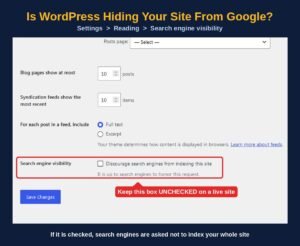
WordPress has a setting under Settings → Reading → Search engine visibility called “Discourage search engines from indexing this site.” Developers often tick it while building the site so unfinished pages don’t appear on Google. The problem starts when the site goes live and nobody unticks it.
According to WPBeginner, when this box is checked WordPress adds a robots meta tag to your header and also adds a Disallow: / rule to your robots.txt file. In simple words, you are asking every search engine to stay away from your entire site.
Real-life example: One WordPress author at WPShout admitted leaving this box checked on a live site, and its rankings dropped over several weeks before he noticed the mistake. Another agency shared a client case on The Magic Checkbox where the box had stayed checked for a few years. Weekly traffic jumped after they simply unchecked it.
What Is a Noindex Tag and How Does It Get Added by Mistake?
A noindex tag is a small line of code that tells Google: “Do not show this page in search results.” It looks like this:
<meta name="robots" content="noindex">SEO plugins like Yoast and Rank Math let you add noindex to posts, pages, categories, tags and even whole post types with one toggle. Common accidents include:
- Setting all posts to noindex instead of only tag archives
- Importing plugin settings from a staging site
- A theme or page builder adding its own robots tag
- Bulk-editing 50 posts and accidentally changing the “Allow search engines” option
Google Search Central confirms that once Googlebot finds a noindex rule, Google drops that page from Search results completely, even if other sites link to it.
Can Robots.txt Stop Your Pages From Ranking?
Yes. Robots.txt is a text file at yourdomain.com/robots.txt that tells crawlers which folders they may visit. One wrong line can block your whole site:
User-agent: *
Disallow: /
There is also a hidden trap here. Google explains that if robots.txt blocks a page, the crawler cannot see the noindex tag on it. So mixing both rules creates confusion. Use robots.txt to manage crawling, and noindex to manage indexing. Never use both on the same page.
What Is a Wrong Canonical Tag?
A canonical tag tells Google which version of a page is the “main” one. If your theme or plugin points every post’s canonical to your homepage, Google treats your articles as copies of the homepage and ignores them. In Search Console, this shows as “Alternate page with proper canonical tag” or “Duplicate, Google chose different canonical than user.”
Key insight: Indexing blocks don’t lower your rankings. They remove you from the race completely. That is why fixing them often brings faster results than writing 20 new articles.
How to Check If Google Can Index Your Site
You can complete this check in about 5 minutes with free tools:
- WordPress dashboard: Look at the “At a Glance” box. If you see “Search Engines Discouraged,” you have found the problem.
- Robots.txt: Open
yourdomain.com/robots.txtand look forDisallow: /underUser-agent: *. - Page source: Open any post, press
Ctrl + U, then search (Ctrl + F) for “noindex”. - Search Console Pages report: Go to Indexing → Pages and check the “Why pages aren’t indexed” table. Look for “Excluded by ‘noindex’ tag” and “Blocked by robots.txt.”
- URL Inspection tool: Paste your most important URL and check whether it says “URL is on Google.”
- Site search: Type
site:yourdomain.comin Google. If you have 200 posts but Google shows 15, something is blocking indexing.
How to Fix Indexing Blocks Step by Step
- Uncheck “Discourage search engines” under Settings → Reading and click Save Changes.
- In Yoast or Rank Math, set posts and pages to “Index”. Keep noindex only for thin pages like tag archives, search results and thank-you pages.
- Clean your robots.txt. Block only areas like
/wp-admin/, never your whole site, CSS or JS files. - Make sure each post’s canonical points to its own URL, not to the homepage.
- Resubmit your XML sitemap in Search Console.
- Use URL Inspection → “Request Indexing” for your 10 most important pages.
- Click “Validate Fix” in the Pages report and check progress after 7 to 14 days.
Google notes that it must crawl a page again to see your changes, and less important pages can take longer to be revisited. Be patient, and keep checking the Pages report every week.
Mistake #2: Are Your Own Pages Competing Against Each Other?
The second hidden SEO mistake is keyword cannibalization. It happens when two or more pages on your site target the same keyword and the same search intent. Instead of one strong page ranking on page 1, you get three weak pages stuck on pages 2 to 5.
Search intent means the reason behind a search. “Buy guest posts” has buying intent. “What is guest posting” has learning intent. Two pages with the same keyword but different intents usually don’t hurt each other. Two pages with the same intent usually do.
What Does Keyword Cannibalization Look Like in Real Life?
Example: An SEO blog publishes these three posts over 18 months:
- “Best Guest Posting Sites List” (2024)
- “Top Guest Post Sites for Backlinks” (2025)
- “Guest Posting Sites 2026” (2026)
All three answer the same question: “Which sites accept guest posts?” Backlinks, internal links and user signals get split three ways. Google keeps swapping which URL it shows, and none of them builds enough strength to reach the top 10.
What Are the Warning Signs of Cannibalization?
- Your ranking URL for one keyword keeps changing every few weeks.
- Rankings jump up and down between positions 8 and 30 without any updates.
- An older, weaker post ranks instead of your newer, better guide.
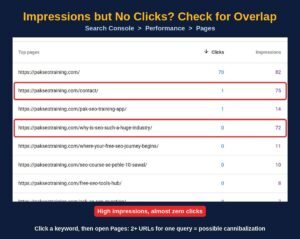
- Several posts get impressions but almost no clicks for the same query.
One strong page beats three weak pages fighting for the same keyword.
How to Find Keyword Cannibalization in 10 Minutes
- Open Google Search Console → Performance → Search results.
- Set the date range to the last 3 months.
- In the Queries tab, click on one of your main keywords.
- Switch to the Pages tab. If 2 or more URLs show real impressions for that query, you have overlap.
- Repeat for your top 10 to 20 keywords.
- Double-check with a Google search:
site:yourdomain.com "your keyword".
How to Fix Keyword Cannibalization Without Losing Traffic
Not every overlap needs the same fix. Use this simple decision guide:
| Situation | Best Fix |
|---|---|
| Same intent, both pages thin | Merge into one strong guide + 301 redirect |
| Same intent, one page clearly better | Improve the strong page, redirect the weak one |
| Different intents, similar titles | Re-target one page to a new keyword and change its title, H1 and intro |
| Both pages rank well (top 5) | Leave them alone. This is coverage, not a problem. |
How Do You Merge Two Articles Safely?
- Choose the main URL, usually the one with the most backlinks or clicks.
- Copy the unique sections from the weaker posts into the main post.
- Update the title, date and introduction so the merged guide feels fresh.
- Add a 301 redirect from every old URL to the main URL using Rank Math or the Redirection plugin.
- Update internal links so they point straight to the main URL.
- Request indexing for the main URL and track its position for 4 to 6 weeks.
Quick win this week: Pick your 5 most important keywords, check the Pages tab in Search Console for each one, and merge just one overlapping pair. Most owners can finish this in under an hour.
What Do Top SEO Experts Say About These Mistakes?
Google Search Central on Indexing Blocks
Google’s own documentation explains why noindex fixes don’t work instantly: “We have to crawl your page in order to see <meta> tags and HTTP headers.” It also recommends using the URL Inspection tool to test your setup. (Source: Google Search Central)
Our review: This is why owners must remove the block and ask Google to recrawl. Fixing the setting alone can leave pages out of the index for weeks.
John Mueller (Google) on Fewer, Stronger Pages
In a 2018 Reddit AMA, Google’s John Mueller shared his view on content overlap: “I prefer fewer, stronger pages over lots of weaker ones.” (Source: cognitiveSEO)
Our review: This is the core reason merging works. Combining three similar posts brings their backlinks and authority together into one page Google can trust.
John Mueller on When Overlap Is Not a Problem
In September 2025, Mueller added an important balance. He said several pages from one site appearing for a query is not automatically a problem, and that owners should study the real data before acting: “You need to look at the details, you need to know your site.” (Source: Search Engine Journal)
Our review: Don’t merge pages just because they share a word. Fix overlap only when Search Console shows two URLs with real impressions for the same intent and neither ranks well.
Frequently Asked Questions
How long does it take for Google to index a site after removing noindex?
Important pages are often recrawled within a few days after you request indexing. Smaller or less linked pages can take several weeks. Submitting your sitemap and requesting indexing for key URLs speeds this up.
Does keyword cannibalization always hurt rankings?
No. If two pages serve different intents, or both rank in the top 5, it is not a problem. It hurts when pages share the same intent and none of them reaches page 1.
Should I delete old posts that compete with new ones?
Usually no. Merge the useful content into the stronger post and add a 301 redirect. Deleting a page without a redirect throws away its backlinks.
Can a WordPress theme add noindex without my knowledge?
Yes. Some themes, page builders and maintenance-mode plugins add their own robots tags. Always check your page source after installing a new theme or plugin.
How often should I check for these hidden SEO mistakes?
Check indexing once a month and after every theme, plugin or migration change. Run a cannibalization check every 3 months, or after every 30 to 50 new posts.
Related Guides You May Like
- Robots.txt Errors Every Site Owner Should Check
- Noindex Tag Mistakes That Kill Your Rankings
- What Is Keyword Cannibalization and How to Fix It
- SEO Audit Checklist for Websites That Don’t Rank
Start Your Hidden SEO Audit Now
Hidden SEO mistakes don’t announce themselves. They slowly drain your traffic while your website looks perfectly fine. Use this quick audit list today:
- Make sure “Discourage search engines” is unchecked in WordPress.
- Open robots.txt and remove any
Disallow: /rule. - Search your page source for “noindex” on your key posts.
- Check that every canonical tag points to its own URL.
- Review the Pages report in Search Console for excluded pages.
- Check your top 10 keywords for multiple ranking URLs.
- Merge and redirect one overlapping pair this week.
- Request indexing and track results for 4 to 6 weeks.
Fix the hidden problems first, and every article you publish afterwards finally gets a fair chance to rank. Start this week.

Muhammad Amjad Butt
SEO Trainer, CEO & Founder of PB Outreach
Muhammad Amjad Butt is an SEO specialist with 21+ years of experience, the CEO and founder of PB Outreach, and the trainer behind Pak SEO Training. He has trained 500+ students and completed 1,000+ guest posting projects for clients.
📚 Related Posts
Poisoned Google Results: Is Your Ranking Drop Fake?
Google has been sending wrong results to rank trackers since September 2026. Learn how to spot a fake ranking drop and check…

SEO Report Template for Link Building (Free Sample + SEO Experts Opinion)
Free SEO report template with a filled sample for link building and guest post campaigns. Track live links, indexing, anchors, rankings and…

Where Is This US SEO Agency? Location and Website Lookup
Want to know where a US SEO agency is based? Search 173 top agencies and instantly see each one’s country, city and…