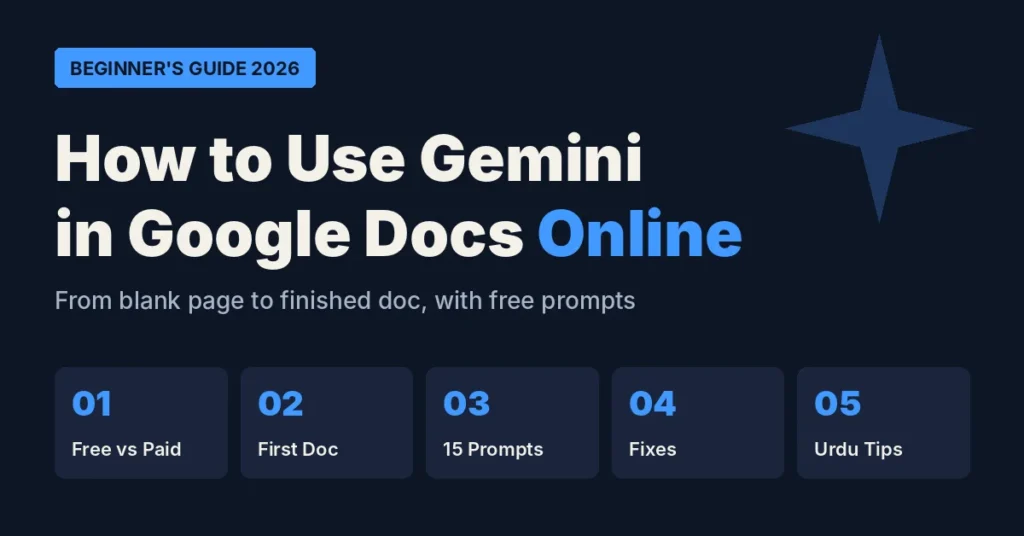
Gemini in Google Docs is Google’s built-in AI writing assistant: it drafts, rewrites, summarizes and formats documents for you, right inside Google Docs online. This beginner guide takes you from a blank page to a finished document, step by step.
Thank you for reading this post, don't forget to subscribe!You will learn what Gemini can do, which plans include it in 2026, how to find it, and how to build your first document with it. You also get 15 ready-to-use prompts, quick fixes for when Gemini is not showing, and an honest answer on Urdu support.
What Is Gemini in Google Docs?
Gemini in Google Docs is an AI assistant that lives inside your document, so you never have to copy text between tabs. You type a request in plain English, and Gemini writes or edits the text for you.
In 2026, Google added four main writing tools to Docs:
- Help me create: writes a formatted first draft from a short prompt, using your Drive files, emails, chats and the web.
- Help me write: edits the whole document or only the text you select. Its suggestions stay private until you accept them.
- Match writing style: keeps the tone the same across a document, even when several people write it.
- Match doc format: copies the fonts, colors, headings and tables of another document you choose.
Think of it as a writing partner that sits next to your page. You still decide what stays, what changes and what gets deleted.
Is Gemini in Google Docs Free? (2026 Plans)
No. Google Docs online is free, but the full Gemini writing tools inside Docs need a paid plan. A free Gmail account can still use the separate Gemini app, but not these built-in Docs features.
| Who you are | Plans that include Gemini in Docs |
|---|---|
| Personal user | Google AI Pro, Google AI Ultra |
| Business | Google Workspace Business Standard, Business Plus |
| Large company | Enterprise Standard, Enterprise Plus |
| School or university | Education Plus, Google AI Pro for Education |
Older articles call the personal plan “Google One AI Premium”. That name is out of date; the current plan is Google AI Pro. Prices change by country, so check the latest price on Google’s plan page before you buy.
How to Open Google Docs Online and Find Gemini
You can use Google Docs online in any browser, with no app to download. Follow these steps:
- Go to docs.google.com and sign in with the Google account that has your Gemini plan.
- Click Blank document to start a new doc, or open an existing one.
- Look for the Gemini bar at the bottom of the page, or the Ask Gemini star icon at the top right.
- Click Ask Gemini to open the side panel, where you can chat with Gemini about your document.
- Type your request, review what Gemini suggests, then accept, edit or reject it.
Tip: use Google Chrome for the smoothest experience. If you have more than one Google account, make sure you are signed in to the paid one, or Gemini will not appear.
Build Your First Doc with Gemini: A Step-by-Step Example
The fastest way to learn Gemini is to build one real document from start to finish. In this example, we create a one-page CV for a junior graphic designer.
- Write a clear first prompt. Open a blank document and type in the Gemini bar: “Create a one-page CV for a junior graphic designer with 2 years of experience in Canva, Photoshop and Illustrator. Include a short summary, skills, experience, education and contact details.”
- Review the first draft. Gemini creates a formatted CV with headings in a few seconds. Read it carefully and replace every sample detail with your real name, jobs and dates.
- Improve one section. Select the summary and ask: “Make this more confident and under 50 words.” Accept the version you like.
- Fix the tone. Ask Gemini to make the whole CV sound professional but friendly, so every section reads the same way.
- Polish the layout. If you already have a CV you like the look of, use Match doc format and pick that file from Drive. Gemini copies its fonts, colors and headings.
- Check everything yourself. Read the final CV once more. AI can make mistakes, so confirm every fact, date and spelling before you send it.
The same six steps work for a school assignment, a blog post, a business proposal or a client report. Only the first prompt changes.
7 Gemini Features Every Beginner Should Try
Once you know the basics, these seven features save the most time.
- Summarize a long document. Open the Ask Gemini side panel and type “Summarize this document in 5 bullet points.” You can also highlight one section and summarize only that part.
- Rewrite selected text. Highlight a paragraph and ask Gemini to shorten it, simplify it or make it more formal. Changes appear as suggestions you can accept or reject.
- Pull in your own files. Type @ in the Gemini bar to pick a file from Google Drive, then ask Gemini to use it in your draft.
- Add facts from the web. Add “using web search” to your prompt when you need current information. Always check the facts it brings in.
- Ask questions about your document. In the side panel, ask things like “What deadlines are mentioned here?” to find details fast.
- Create images. Ask the side panel for an image, choose the one you like, and insert it into your doc.
- Listen to your document. Go to Tools > Audio > Listen to this tab to hear your text read aloud. It is a simple way to catch awkward sentences.
15 Ready-to-Use Gemini Prompts for Google Docs
Copy these prompts into the Gemini bar and change the words in brackets. Good prompts name the topic, the reader, the length and the tone.
| For | Prompt |
|---|---|
| Students | Create a 500-word essay outline on [topic] with an introduction, 3 main points and a conclusion. |
| Students | Explain [concept] in simple words for a 10th-grade student, with one real-life example. |
| Students | Turn these lecture notes into 10 revision questions with short answers. |
| Students | Check this paragraph for grammar mistakes and explain each correction. |
| Students | Summarize this chapter in 150 words for quick revision. |
| Freelancers | Write a short, polite proposal for a client who needs [service], highlighting [your strength]. |
| Freelancers | Create a project brief with goals, deliverables, timeline and price sections. |
| Freelancers | Rewrite this client email to sound professional and confident. |
| Freelancers | Draft a monthly progress report for [client] using the points below. |
| Freelancers | Turn this list of tasks into a clear invoice description. |
| Bloggers | Create a blog outline on [topic] with an H1, five H2 headings and an FAQ section. |
| Bloggers | Write a 150-word introduction for a blog post on [topic] that starts with a question. |
| Bloggers | Suggest 10 SEO-friendly titles for an article about [topic], each under 60 characters. |
| Bloggers | Rewrite this paragraph so it is easier to read, using shorter sentences. |
| Bloggers | Write 5 FAQs with short answers for an article about [topic]. |
Gemini Not Showing in Google Docs? Quick Fixes
If you cannot see the Gemini bar or the Ask Gemini button, the cause is usually your plan, your account or your language setting. Work through these fixes in order:
- Check your plan. A free Google account does not get Gemini inside Docs. You need one of the plans listed above.
- Switch to the right account. Click your profile picture at the top right and make sure you are in the account that has the paid plan.
- Ask your admin. On a work or school account, the admin must turn on Gemini for your organization. If it is off, only they can switch it on.
- Check your language. Some Gemini features launch in English first. Set your Google account language to English and reload the document.
- Wait for the rollout. Google releases new features gradually, so they can reach your account a few weeks after the announcement.
- Refresh your browser. Update Chrome, clear the cache, and turn off extensions one by one to see if one of them hides the Gemini button.
- Try a new document. Open a blank doc. If Gemini appears there, the problem is with the original file, not your account.
Can You Use Gemini in Google Docs in Urdu?
Not yet. As of October 2026, Gemini’s writing tools in Docs do not support Urdu.
In July 2026, Google expanded Gemini in Docs to 19 languages. The original eight were English, Spanish, Portuguese, Japanese, French, Korean, German and Italian. The 11 new ones are Mandarin, Dutch, Malay, Hebrew, Polish, Turkish, Czech, Indonesian, Swedish, Danish and Norwegian. Urdu and Hindi are not on the list.
Until Urdu support arrives, Pakistani users can still get great results:
- Write your prompts in simple English. Short, clear sentences give the best output.
- Type Urdu text yourself. Google Docs online still supports Urdu typing and voice typing; only the Gemini tools are English-first.
- Draft in English, then translate. Use Tools > Translate document to create an Urdu copy, then review it carefully.
Frequently Asked Questions
How do I use Gemini in Google Docs for the first time?
Open a document at docs.google.com, click Ask Gemini at the top right or use the Gemini bar at the bottom, and type what you want in plain English.
Is Gemini in Google Docs free?
No. Google Docs is free, but Gemini inside Docs needs Google AI Pro, Google AI Ultra, or an eligible Google Workspace plan.
Can Gemini see my other Google Drive files?
Only when you ask it to. Type @ in the Gemini bar to choose which files it can use for your draft.
Will other people see Gemini’s suggestions in a shared doc?
No. Suggestions from Help me write stay private to you until you accept them.
Can Gemini make mistakes?
Yes. Always check names, numbers, dates and facts before you share or submit the document.
Conclusion
Gemini turns Google Docs online into a writing partner that can draft, edit, summarize and format for you. Start with one real document, use the prompts above, and check every result before you share it. Once the basics feel easy, try Match writing style and Match doc format to make every document look and sound consistent.