Google Search Console Regex Filters: Find Long-Tail Keywords (2026)
How to Apply a Regex Filter in Google Search Console (Step-by-Step)
Regular Expressions (Regex) are simple text patterns that tell GSC which exact keywords or URLs to show or hide. You do not need coding skills to use them—just copy, paste, and filter.
- Open Google Search Console and select your website property.
- Click Performance (or Search Results) in the left sidebar.
- Click the + New button at the top of the report and select Query…
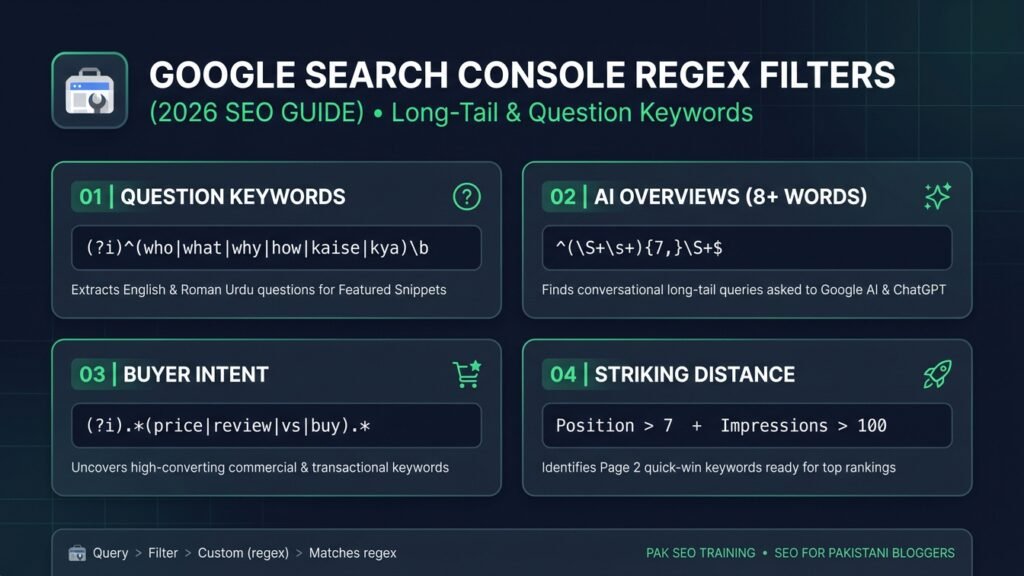
- Change the filter dropdown from Queries containing to Custom (regex), select Matches regex, paste your formula, and click Apply.
Two Critical GSC Regex Rules Most Guides Miss
- The 256-Character Limit: GSC strictly caps custom regex strings at 256 characters. Keep your formulas clean and modular rather than cramming dozens of words into one filter.
- Case Sensitivity (
(?i)): By default, GSC regex is case-sensitive—meaninghowwill not matchHow. Always start your formula with(?i)so GSC captures both uppercase and lowercase searches.
6 Copy-Paste GSC Regex Formulas Every Site Owner Needs
1. Question Keywords Regex (Win Featured Snippets)
Question-based queries are the easiest way to capture Featured Snippets and “People Also Ask” boxes. This formula extracts both global English questions and localized Roman Urdu/Hindi queries in one click:
(?i)^(who|what|where|when|why|how|kaise|kya|kyun|kahan|kitna|tarika)\bHow to use it: Export the resulting queries, pick questions with high impressions and low clicks, and add them as H2 or H3 subheadings inside your existing articles with a direct 45-word answer immediately underneath.
2. 2026 AI Overviews & Conversational Long-Tail Queries (8+ Words)
In 2026, users rarely search two-word phrases when looking for detailed solutions—they type full conversational prompts into Google AI Overviews, ChatGPT, and Perplexity. Use this formula to isolate queries containing 8 or more words:
^(\S+\s+){7,}\S+$How to use it: These hyper-specific queries show the exact natural language your audience uses. Optimizing your headings and FAQ sections around these phrases boosts your visibility in both organic search and AI-generated answers. If you are optimizing your site for generative search engines, pair this tactic with our guide on how to build an llms.txt file so AI crawlers cite your pages accurately.
3. Buyer-Intent & Commercial Comparison Keywords
Informational traffic is great, but commercial-intent keywords drive actual leads, affiliate clicks, and service inquiries. Filter out casual browsers and isolate high-intent searchers with this formula:
(?i).*(price|cost|review|vs|alternative|best|buy|service|course|agency).*How to use it: Look for comparison (vs or alternative) and pricing queries where your pages rank on positions 4–10. Updating your comparison tables and pricing breakdowns on those pages can quickly lift conversions.
4. Exclude Branded Queries (“Does Not Match Regex”)
When you analyze your top keywords, your own brand name or domain variations often dominate the top spots, skewing your non-branded SEO data. To see pure organic discovery keywords, select Does not match regex and enter your brand variations:
(?i).*(pak\s?seo|amjad\s?butt|pb\s?outreach).*(Note: Replace the sample brand terms above with your own website name and common misspellings.)
5. The “Striking Distance” Secret Combo (Fastest Page-1 Wins)
Running a regex filter alone can still return hundreds of keywords. The real SEO shortcut is combining any regex filter above with Position and Impressions filters:
- Keep your active Custom (regex) query filter applied.
- Click + New > Position, select Greater than, and enter
7. - Click + New > Impressions, select Greater than, and enter
100.
This reveals “Striking Distance” keywords—queries where Google already trusts your page enough to rank it on the bottom of Page 1 or top of Page 2 (positions 8–20). Adding two internal links and a dedicated paragraph for these terms often pushes them into the top 3 within days.
6. Pages Tab Regex: Catch Keyword Cannibalization & Junk URLs
Most marketers only use regex inside the Queries tab and completely ignore the Pages tab. Switch to Pages > + New > Page > Custom (regex) and run this pattern:
.*(category|tag|\?s=|page/|author).*How to use it: If archive, pagination, or internal search URLs are receiving impressions, they are competing with your main blog posts and wasting crawl budget. Cleaning up low-value indexed pages is one of the fastest ways to recover lost sitewide rankings—as covered in our Google November 2026 Core Update recovery checklist.
GSC Regex vs. Paid Keyword Research Tools
Should you rely on Google Search Console regex or paid third-party tools? Here is how they compare for everyday on-page optimization:
| Feature | Google Search Console (Regex) | Paid Tools (Ahrefs / Semrush) |
|---|---|---|
| Cost | 100% Free | $99 – $400+ per month |
| Data Source | First-party Google search data | Estimated clickstream & scraping models |
| Long-Tail & Question Accuracy | Exact queries your site ranks for | Often misses zero-volume conversational queries |
| Competitor Keyword Spying | Not available (your site only) | Strong competitor gap analysis |
| Best Use Case | Content updates, CTR boosts & AI Overviews | New niche research & backlink auditing |
For deeper technical insights on combining first-party search data with free backlink audits, check out our comparison of Ahrefs Webmaster Tools vs. Google Search Console.
4-Step Action Plan: How to Rank the Keywords You Find
Finding keywords is only half the job. Follow this checklist whenever you export a fresh batch of regex queries:
- Map Queries to Existing URLs: Never create a brand-new post if an existing article already ranks in positions 8–20 for that query—update the existing page to avoid keyword cannibalization.
- Add Exact Questions as Subheadings: Place the exact question query inside an
H2orH3tag, followed immediately by a clear, 40-to-50-word direct answer for Featured Snippet eligibility. - Strengthen Internal Links: Link to the updated article from 2–3 relevant high-traffic pages on your site using natural, descriptive anchor text.
- Request Re-Indexing: Paste the updated URL into GSC’s top URL Inspection bar and click Request Indexing so Google crawls your improvements faster.
Need help diagnosing a specific ranking drop or building a custom keyword plan? You can test your site metrics or submit your query anytime through our free SEO tools and Q&A hub.
Frequently Asked Questions (FAQs)
1. What is a regex filter in Google Search Console?
A regex (Regular Expression) filter in Google Search Console is a pattern-matching rule that lets you filter thousands of search queries or URLs at once. It helps SEOs isolate specific keyword types—such as questions, long-tail phrases, or commercial terms—without exporting spreadsheets.
2. What is the character limit for GSC regex filters?
Google Search Console enforces a strict 256-character limit per custom regex field. If your pattern exceeds 256 characters, GSC will display an invalid regex error, so break long word lists into separate, focused filters.
3. How do I make Google Search Console regex case-insensitive?
Add (?i) at the very beginning of your regex formula. Because GSC regex is case-sensitive by default, adding (?i) ensures that queries starting with capital letters (like “How”) and lowercase letters (like “how”) are both captured accurately.
4. How can I find AI Overview keywords in Google Search Console?
Use the regex pattern ^(\S+\s+){7,}\S+$ in the Queries filter to isolate conversational queries with eight or more words. Longer, natural-language questions closely mirror the prompts users type into Google AI Overviews and AI search engines.

Muhammad Amjad Butt
SEO Trainer, CEO & Founder of PB Outreach
Muhammad Amjad Butt is an SEO specialist from Faisalabad, Pakistan, practicing SEO since 2006. He is the CEO and founder of PB Outreach and the trainer behind Pak SEO Training. He has trained 500+ students and completed 1,000+ guest posting projects for clients.
📚 Related Posts
Semrush Organic Rankings 2.0 Review: 4 Bugs & Why It Shows 0 Traffic (2026)
Honest Semrush Organic Rankings 2.0 review (2026). Learn how AI-Influenced Traffic, Mentions, and Citations work—plus 4 common bugs causing 0 traffic errors…

How Link Building Agencies Work in 2026 (With Real Agency Case Study)
Discover how link building agencies work behind the scenes—from outreach and publisher networks to pricing. Includes a real case study on Interamplify…
Reddit Post Auto-Deleted in Seconds? Why Posts Get Instantly Removed in Pakistan (2026 Fix & SEO Guide)
Reddit post foran delete ho jati hai? Learn why Reddit's automated filters & CGNAT block Pakistani accounts in 2026 and follow our…