How to Translate a PDF Without Breaking Its Layout
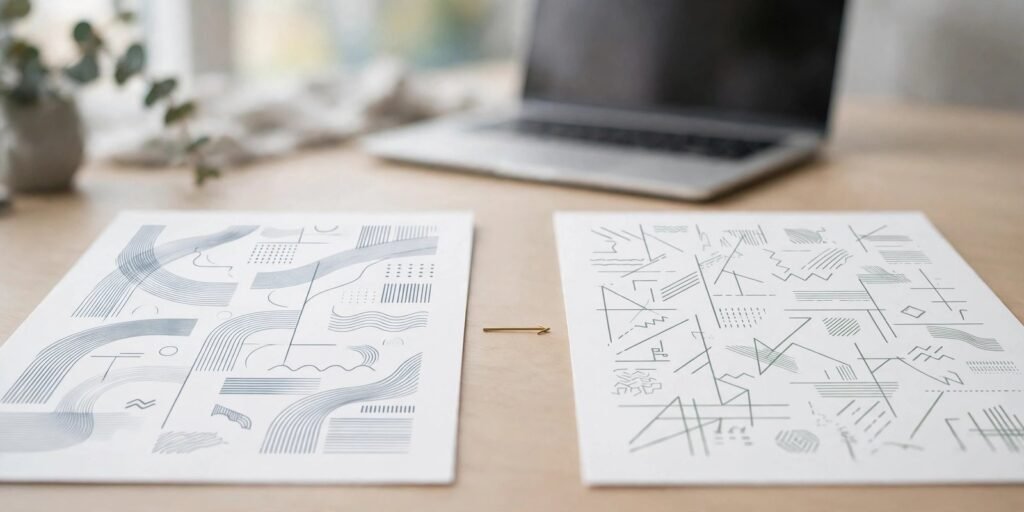
You receive a PDF in a language you do not read. A contract from a supplier, a research paper for class, a manual for a product you need to use. The text is right there, but you cannot understand a word of it, and the usual fix makes things worse: copy the text out, paste it into a translator, and you get plain paragraphs with no tables, no headings, and no idea which number belonged to which row.
Translating a PDF is not the same as translating text. A PDF is a fixed layout. Every word sits at an exact position on the page, tables hold their shape with cell borders, and images sit exactly where the author placed them. A good translation keeps all of that. A bad one gives you the words and destroys the document.
Why PDFs resist simple translation
The first problem is that a PDF does not store a document the way a word processor does. There are no flowing paragraphs that reflow when text gets longer. Translated text is often 20 to 30 percent longer than the original — German and French routinely expand from English — and in a fixed layout, longer text has nowhere to go. It overflows its box, overlaps the next line, or gets cut off.
Tables make it harder. A table in a PDF is a set of positioned lines and text fragments, not a neat grid the software understands. A translator that reads the page left to right can stitch a cell from one column to a cell from another, and suddenly your invoice totals sit under the wrong headings.
Then there are scanned pages. Millions of PDFs are just photographs of paper: no selectable text at all. Before anything can be translated, the text has to be read off the image, and that reading step introduces its own errors, especially with small print, stamps, and handwriting.
Also read: How to Use Gemini in Google Docs Online: 2026 Beginner Guide
None of this means PDF translation is unreliable. It means the tool matters, and so does checking the result.
Check the document before you translate it
A minute of inspection saves a failed translation. Open the PDF and try to select a sentence with your mouse. If you can select and copy text, the document has a real text layer and will translate cleanly. If you cannot select anything, it is a scan, and you need a tool that reads scanned pages first.
Next, look at what the document contains. Tables, multi-column layouts, footnotes, and charts are the parts most likely to break. Note where they are so you know what to check afterward. Pay attention to numbers, dates, names, and codes — these should mostly survive translation unchanged, and any tool that “translates” a part number or a person’s name is creating errors, not fixing them.
Finally, check the size. A 200-page manual does not need to be translated all at once if you only need one chapter. Translating the pages you actually need first lets you judge quality before committing to the whole document.
A workflow that keeps the layout intact
Here is the process that works most reliably:
- Start from the best original you have. A clean digital PDF translates far better than a photocopy of a photocopy. If someone can send you the original file instead of a scan, ask for it.
- Let the tool detect the source language, but confirm the target. Automatic detection handles the common cases well. The choice that matters is the target language and its variant where that applies — European and Brazilian Portuguese, for example, are not interchangeable in formal documents.
- Preview before you download. Translate a few pages first and open the result. Read a paragraph, check a table, and confirm that headings, images, and page breaks are where they belong. A short preview tells you more about quality than any marketing claim.
- Check the risky parts deliberately. Open the tables and compare totals and labels against the original. Scan for numbers that changed, names that were altered, and footnotes that drifted to the wrong page. These are the errors that slip past a quick skim.
- Download the full document only when the preview passes. If the preview looks wrong, try different settings or a different approach for that document rather than translating all 200 pages and hoping.
An AI PDF translator that rebuilds each page — placing translated text back in the same positions, with the same tables and styling — handles most of this automatically. The preview step is still yours. No tool can tell you whether a translated clause means what the original meant.
Also read: LCP Optimization Best Practices 2026: Get Under 2.5 Seconds (Step-by-Step Guide)
What AI translation still gets wrong
Modern AI translation is genuinely good for everyday business, academic, and technical documents. It handles context far better than the word-for-word tools of a few years ago. But it has predictable weak spots, and knowing them is part of using it well.
Idioms and culturally specific phrases are the classic failure. A phrase that is perfectly natural in one language can come out literal and strange in another. Domain terminology is another: the same word can mean different things in medicine, law, and engineering, and the tool has to guess which domain you are in.
For anything with legal, medical, or regulatory consequences — a contract you will sign, a patient leaflet, a compliance filing — treat AI translation as a first draft and have a qualified person review it. That is not a criticism of the technology. It is the same rule professionals apply to any translation that carries real-world risk.
Privacy matters too. You are uploading a document to be processed, so check what happens to it afterward. A tool that deletes files after translation and does not use them for training is the baseline you should expect, especially for business and personal documents.
After translation: editing and sharing
The translated PDF you download is a standard PDF, and sometimes you will want to change it: fix a term, adjust a heading, or update a figure. For that, convert the PDF to Word, make your edits in the word processor, and export a fresh PDF. Editing text directly inside a PDF is possible but fiddly, and a round trip through an editable format is usually faster.
Also read: 15 Social Media Branding Tips That Work in 2026
Before you share the result, do one last pass. Open the translated file next to the original and flip through both. Check the first page, the last page, and every table. If someone else will rely on this document, that five-minute check is the difference between a helpful translation and an embarrassing one.
Translating a PDF well comes down to three habits: start from a clean original, preview before committing, and check the parts that matter most. The technology does the heavy lifting now. Your job is to make sure the document that comes back is still the document you meant to send.

Muhammad Amjad Butt
SEO Trainer, CEO & Founder of PB Outreach
Muhammad Amjad Butt is an SEO specialist from Faisalabad, Pakistan, practicing SEO since 2006. He is the CEO and founder of PB Outreach and the trainer behind Pak SEO Training. He has trained 500+ students and completed 1,000+ guest posting projects for clients.
📚 Related Posts

Meta Muse (Musa) AI in Pakistan: Myths vs. Reality
Exposing the viral Musa AI myths in Pakistan. Learn what Meta Muse actually is, why VPN tricks fail, and how regional store…
How to Build an llms.txt File in 2026: A Step-by-Step Guide to Getting Your Website Cited by ChatGPT, Gemini & Perplexity
Learn how to build an llms.txt file in 2026 to get cited by ChatGPT, Gemini, and Perplexity. Includes a copy-paste template, WordPress…
How I’m Fixing Wrong Brand Info in ChatGPT in 14 Days (Live Experiment Log)
Live 14-day experiment: I'm fixing wrong and missing brand info about Pak SEO Training in ChatGPT Search. Day 1 audit, schema code,…